
MCP
FreeVideoGenerator MCP

Your ideas. Your assistant. One MCP connection.

Create AI images & videosright inside Claude MCP

Create images and videos from your AI assistant. Discover models, check costs, use your own media, and collect the finished results.

MCP

1Add the remote MCP server

Add this remote server in your client, then sign in to your account in the browser and review its permissions.

claude mcp add --transport http freevideogenerator https://freevideogenerator.app/api/mcp

2Sign in and start creating

OAuth · Review permissions

Uses your existing credits at the same prices as the website. Your assistant quotes the cost before generation. Failed jobs follow the same refund rules.

Claude · Client documentationManage connections
OAuth 2.1Claude · ChatGPT · Cursor · CodexAPI Keys
FreeVideoGenerator / MCP

Keep your creative flow going

From the first reference to the final result, create where your ideas already live.

01

Start with something that is yours

Bring your product photos, characters, and visual references into the conversation. Use them to guide image and video models that support reference media.

Create with your own media

Use my product photo to create a vertical campaign visual, then turn it into a short video.

FreeVideoGeneratorCreative output
9:16 · MP4
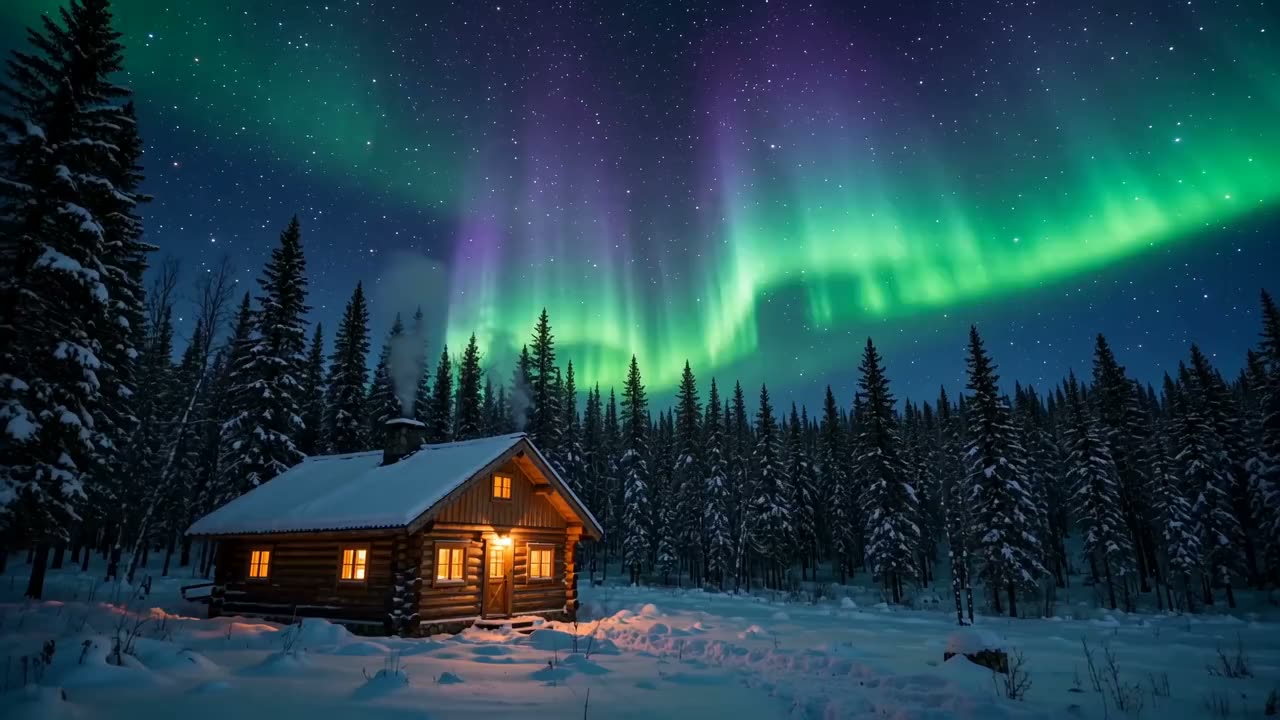
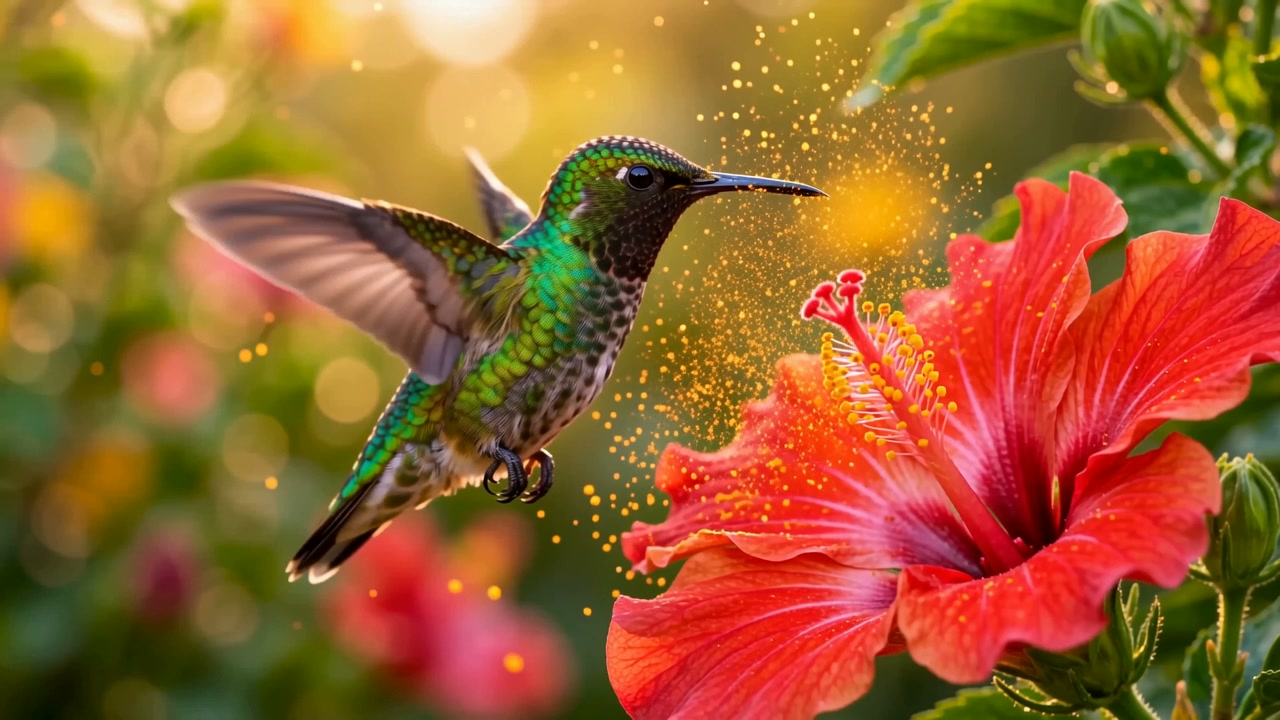
02

Create in the context of your project

Your assistant already knows the brief. Ask for a scene, campaign, or set of visuals, then carry the finished files back into the project you are building.

Bring your project to life

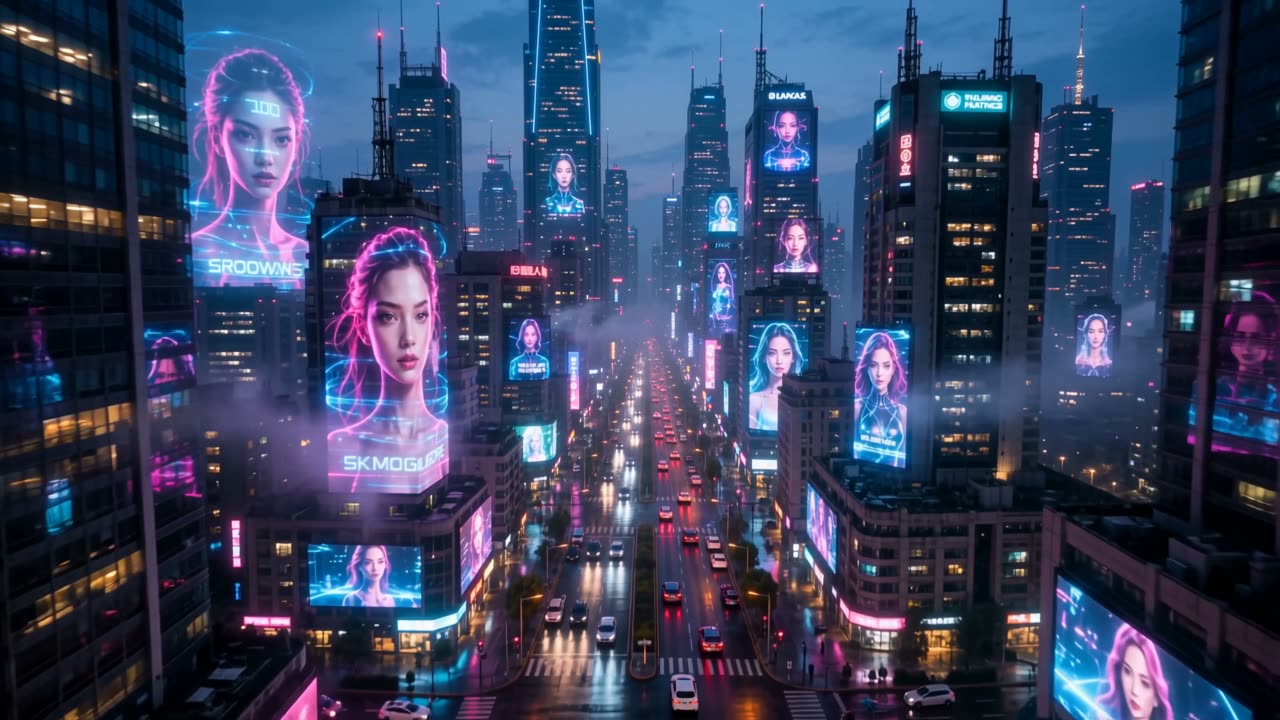
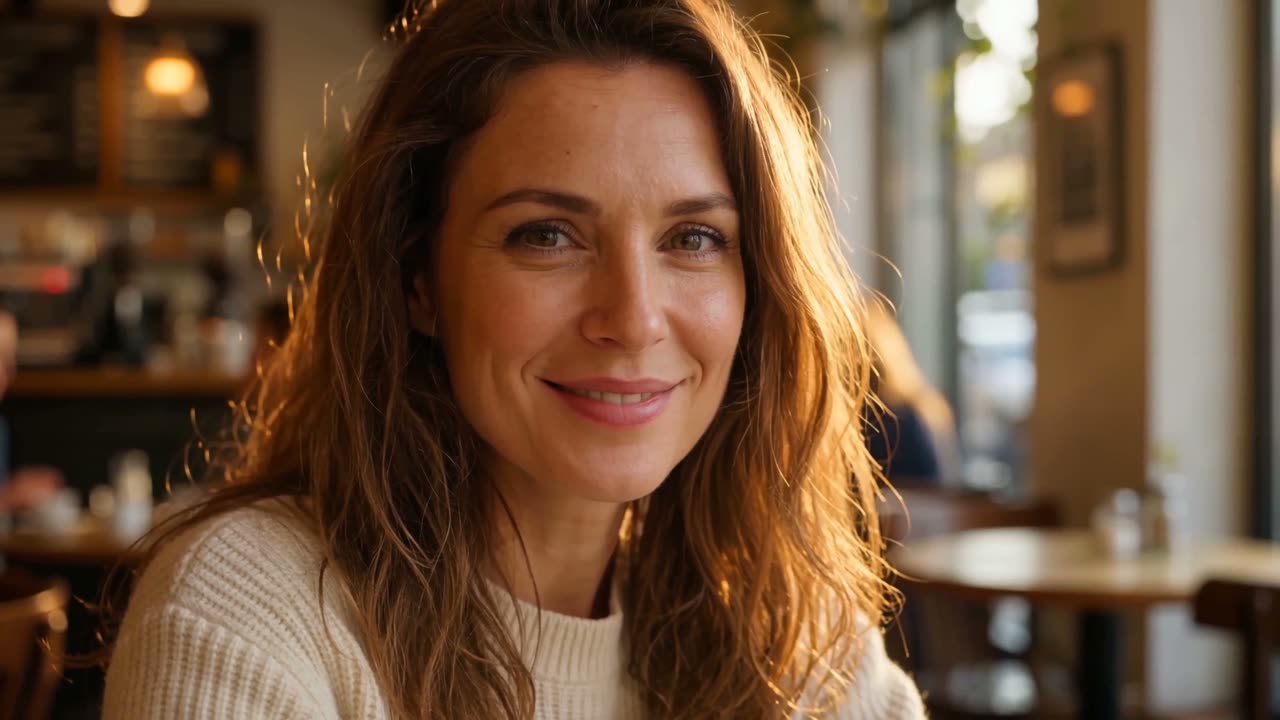
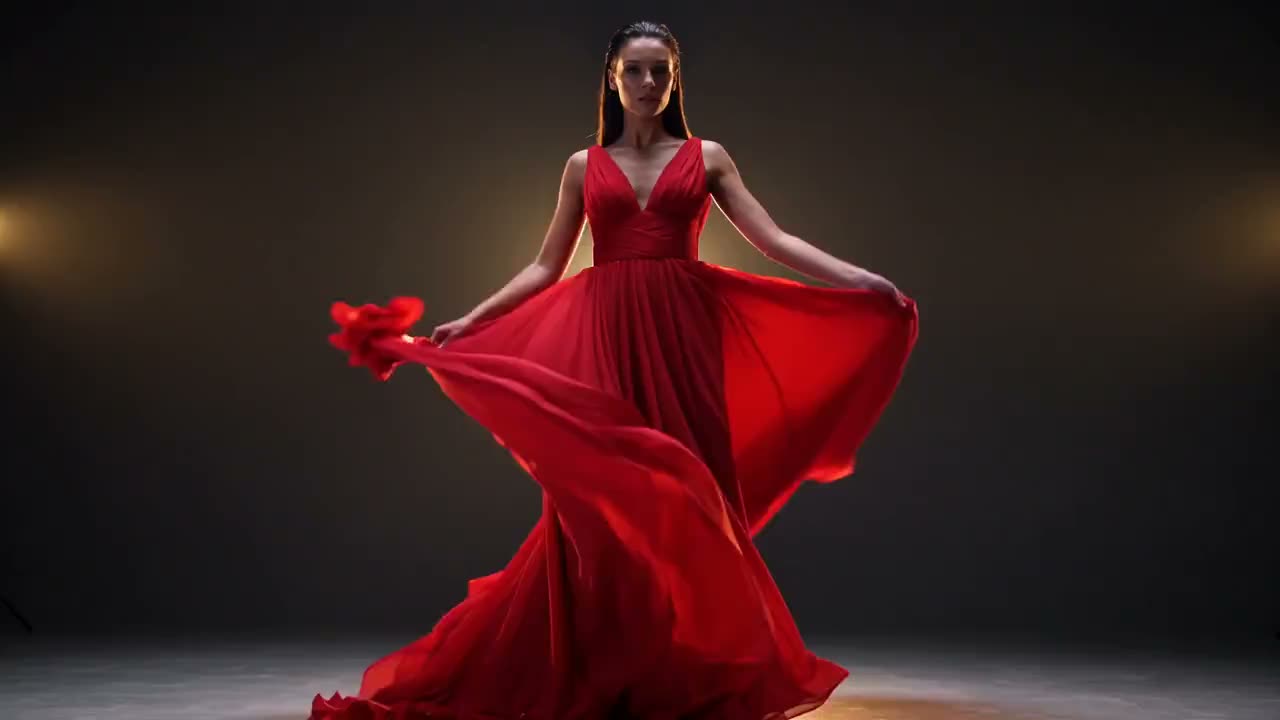
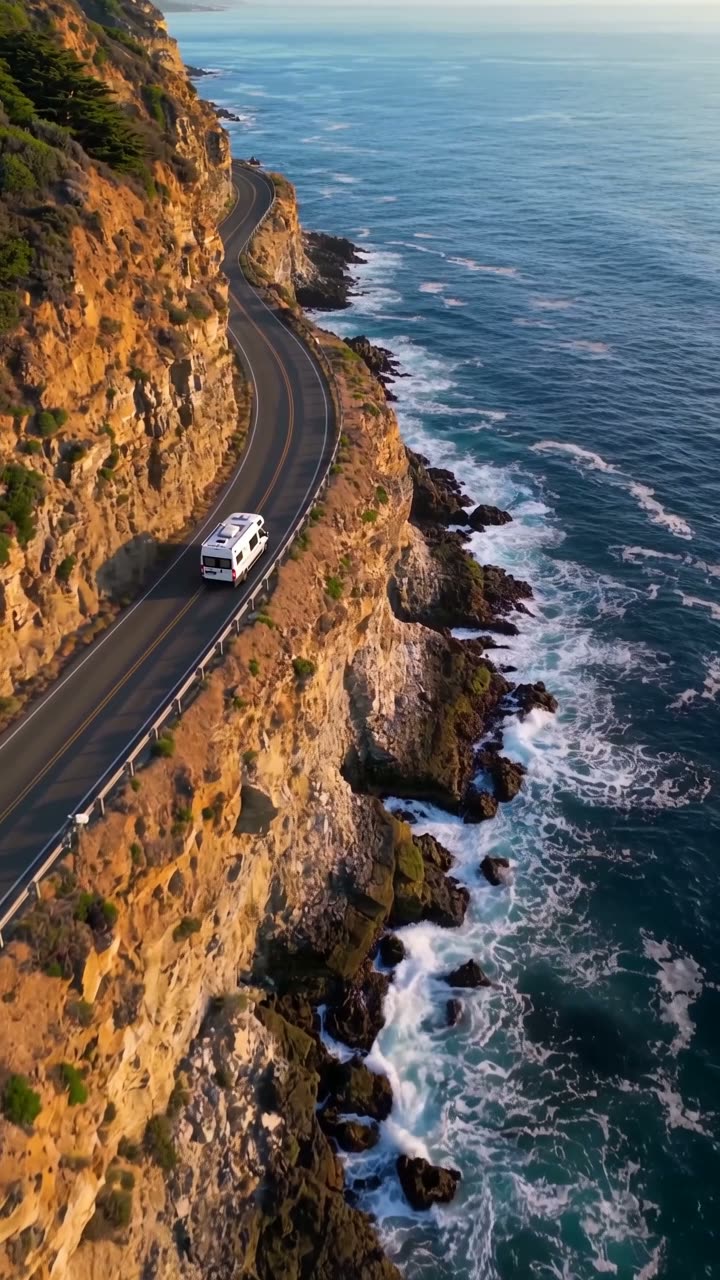
Create four visual directions for my project: cinematic, natural, anime, and futuristic.

01
02
03
04
03

Let your assistant handle the details

Discover compatible models, check your balance, and get a credit quote before generating. Follow each job until the results are ready.

Plan before you generate

Find a suitable video model. Check the cost before submitting, then follow the task to completion.

Video models Quote first
Seedance 2.09:16 · 720p
Job progress100%
Creative output Completed
04

Make your next version from this one

Reuse an image as a video reference. Explore supported video editing, motion, and upscaling models, with the input requirements explained by your assistant.

Keep creating from your results

Use this visual as the starting point for my next video. Keep the same mood and subject.

05

One brief. Up to 12 creative directions.

Submit image and video tasks together in a batch. Track each result separately, compare the variations, and choose which direction to develop.

Explore more in one batch

Create six variations of this campaign, with a different scene and visual direction for each.

01
02
03
04
05
06
06

Turn a story into your next shot

Start with an article or story idea. Ask for editable shot suggestions, refine the direction, and generate your images and videos in stages.

Build your next story

Turn this article into three editable shot ideas. Let me review them before generating.

01
02
03
IMAGE + VIDEO

The right model, one connection away

Choose from the same image and video model catalog as the website. Your assistant can discover the current options.

Video models

Image models

Why connect your creative tools to your assistant?

Sign in. You are connected.

Add this remote server in your client, then sign in to your account in the browser and review its permissions.

Your credits, in one place

Uses your existing credits at the same prices as the website. Your assistant quotes the cost before generation. Failed jobs follow the same refund rules.

A model for every direction

Choose from the same image and video model catalog as the website. Your assistant can discover the current options.

Your media comes with you

Use existing files, import public HTTPS media, or upload local files.

Keep every finished result

Ask your assistant to check the job or batch. Completed tasks return preview and download links. If a link expires, ask for the job again to get a fresh one.

More ideas, one batch

Create up to 12 image or video tasks in a batch and follow each result.

A few things you might be wondering

What can I do with this MCP server?

Create images and videos from your AI assistant. Discover models, check costs, use your own media, and collect the finished results.

How do I connect my AI assistant?

Add this remote server in your client, then sign in to your account in the browser and review its permissions.

How are generations charged?

Uses your existing credits at the same prices as the website. Your assistant quotes the cost before generation. Failed jobs follow the same refund rules.

Can I use my own reference files?

Use existing files, import public HTTPS media, or upload local files.

Can I generate several results together?

Create up to 12 image or video tasks in a batch and follow each result.

Do I need an API key?

No API key is needed when your client supports browser-based OAuth. Add the server and sign in. MCP API keys are available for clients that need them.

How do I get the finished results?

Ask your assistant to check the job or batch. Completed tasks return preview and download links. If a link expires, ask for the job again to get a fresh one.

Can I disconnect my assistant?

Yes. Open Manage connections in your account and revoke the assistant’s access. You can also remove an MCP API key from your API key settings.

One connection.
A world of possibilities.

Bring your ideas, your references, and your favorite assistant. Start creating together.

Connect your assistant